First setup, start to finish
You need the device, a phone and your 2.4 GHz Wi‑Fi password. No app, no account. About five minutes, most of it reading.

Charge it, then look for the logo.
Plug in the USB‑C cable for a first charge; the device works on the cable too. A new or freshly reset device shows the Smart Meteo logo and sleeps. That's normal: it waits for you and uses almost nothing.
Paper keeps the picture without power, so the logo stays on the glass even while the device sleeps.
Press the button once.
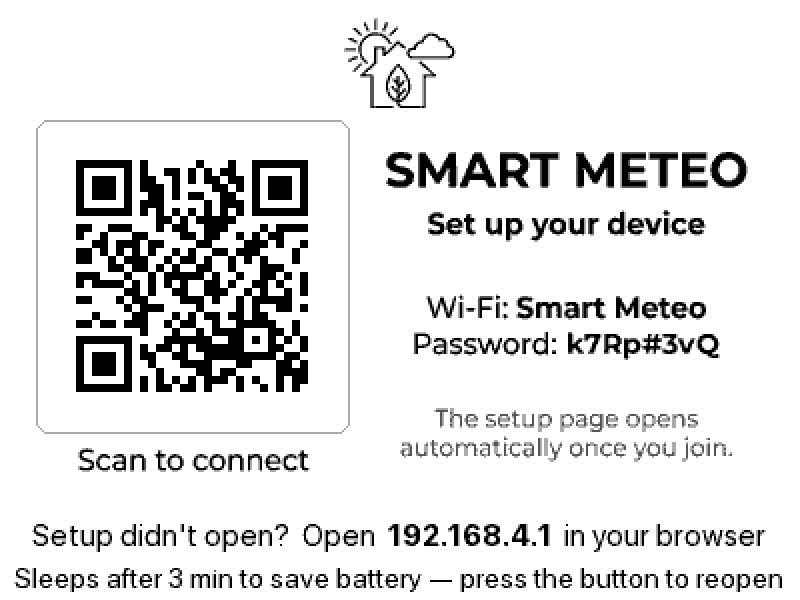
The button is on the right edge. One press and the screen changes to Set up your device, with a QR code, the Wi‑Fi name Smart Meteo and a password.
The password is unique to your device, and eight characters long. It also opens the settings page later, so it's worth noting down. Don't worry if you don't: the device shows it on its screen every time you need it.
The setup Wi‑Fi stays up for 3 minutes of inactivity. If it goes back to the logo, press the button again.
Scan the QR code with your phone camera.
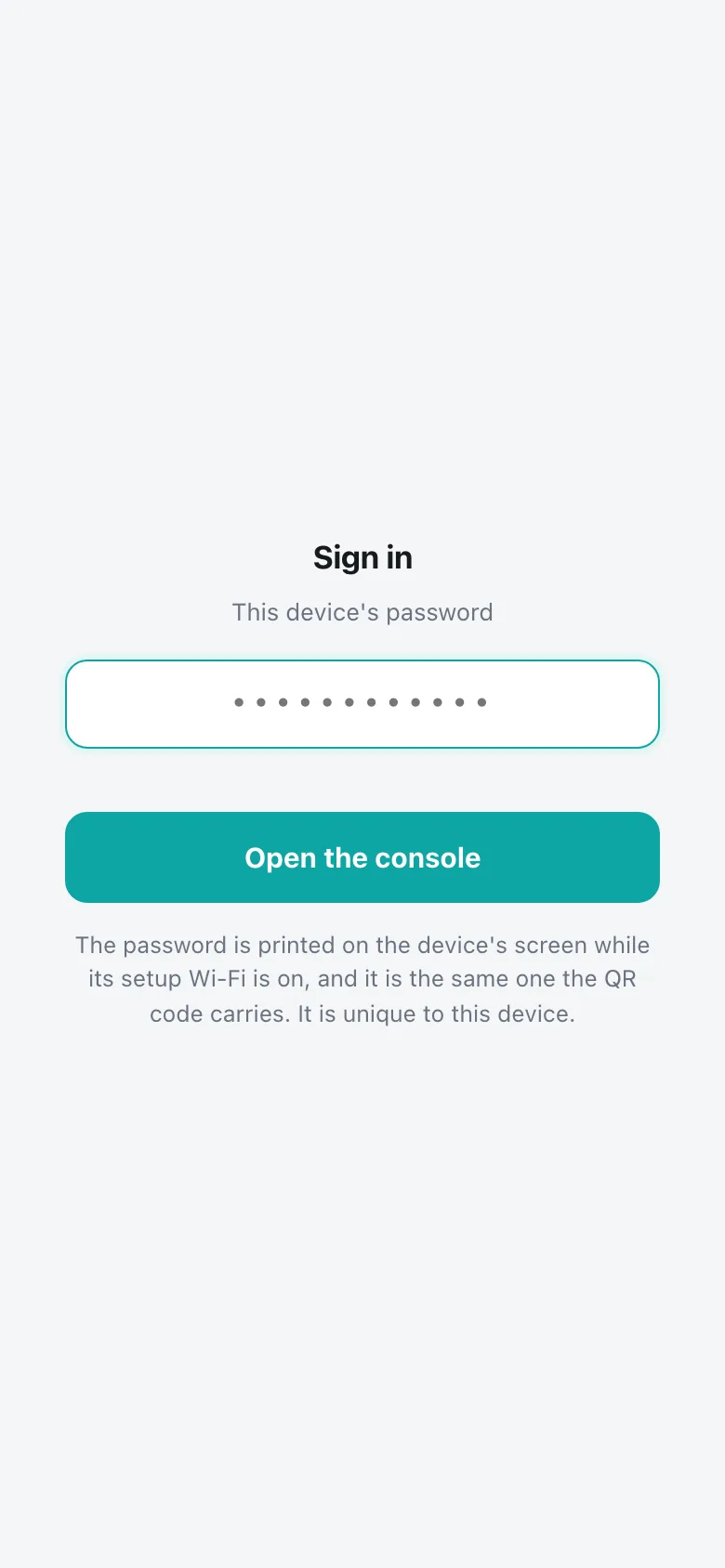
The camera offers to join Smart Meteo; the password is inside the code. The setup page usually opens by itself.
If it doesn't, open 192.168.4.1 in the browser. To join by hand, pick Smart Meteo in your Wi‑Fi list and type the password from the screen. Capital letters count.
Your phone may warn "no internet" on this network. That's expected; stay connected until setup is done.
Follow the wizard.
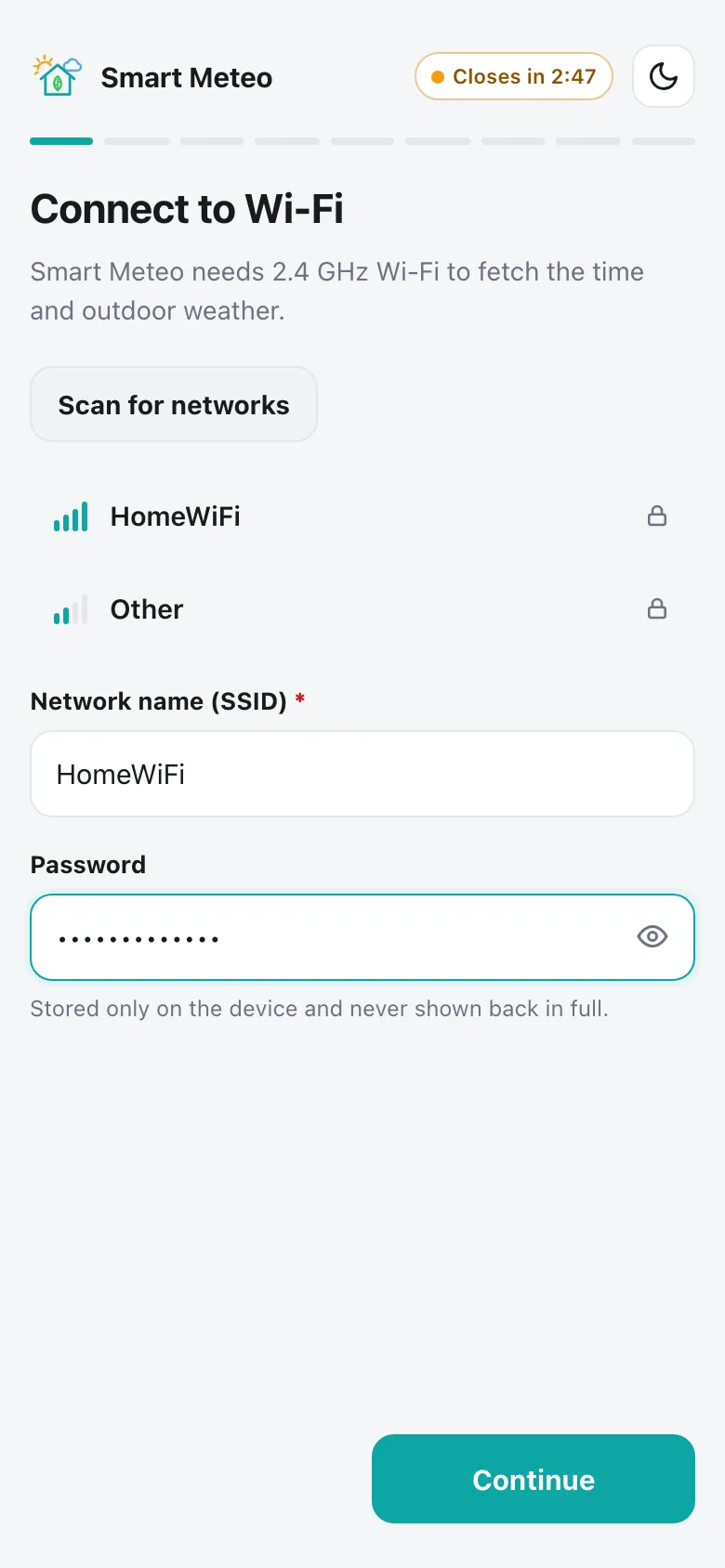
It asks for your home Wi‑Fi, then the clock, your city for the weather, and whether you have a smart home hub. Then it takes a short tour of the screen. Every step except Wi‑Fi can be skipped and done later.
The next chapter goes through every wizard screen, field by field.
Name it, then Apply & restart.
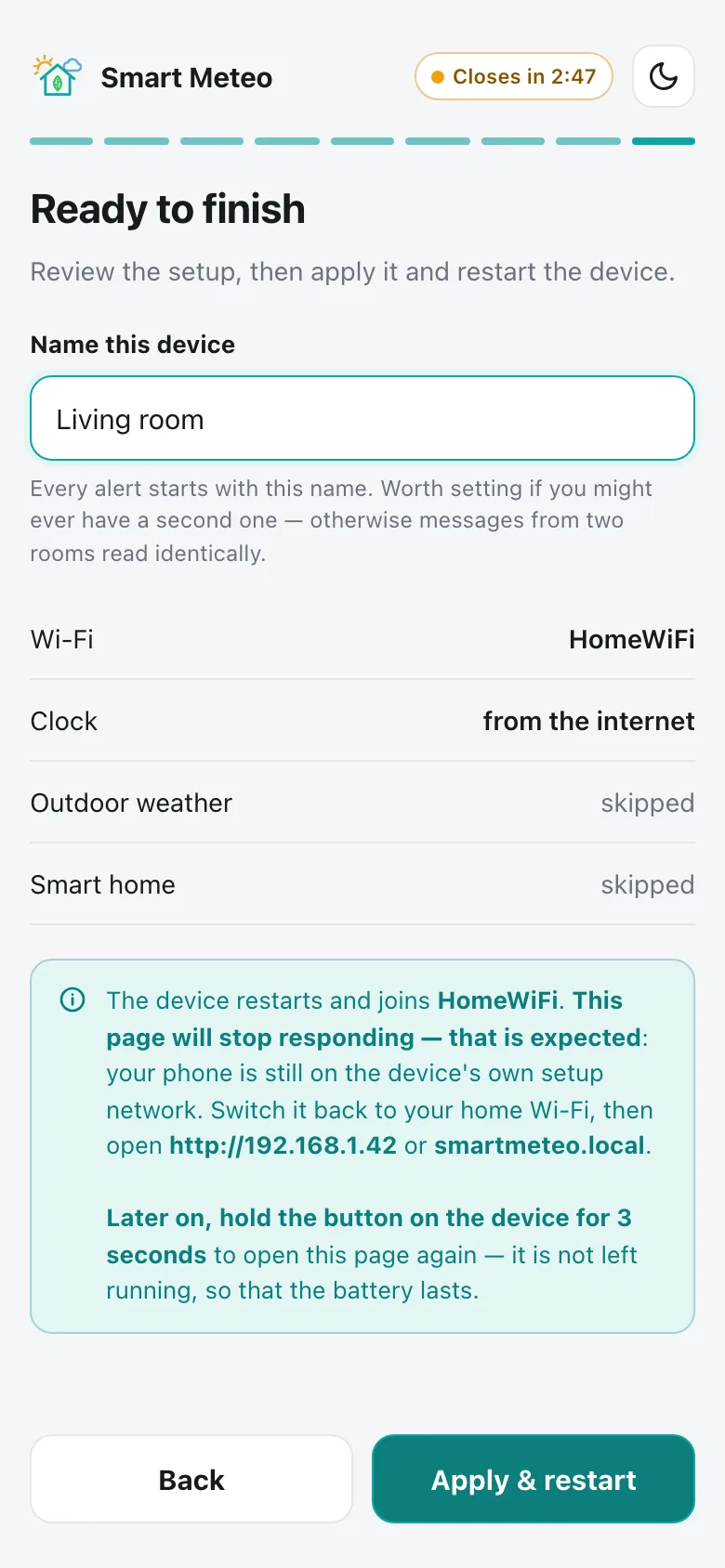
Give the device a name, for example the room it stands in. Every alert starts with that name, so if you have two devices it tells them apart.
After Apply & restart the page stops responding. That's expected: the device leaves its own Wi‑Fi and joins yours. Switch your phone back to your home Wi‑Fi.
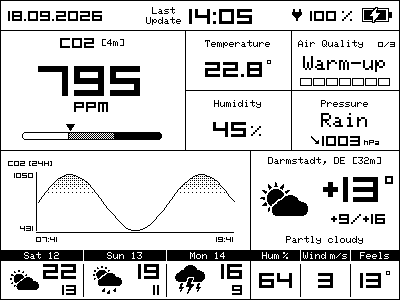
Minutes for CO₂, days for the gas sensor.
CO₂, temperature and humidity are right from the first minute. For the first few minutes you may see dashes and an empty graph. Clock, weather and history fill in after the device has been online once.
The air‑quality sensor says Warm‑up for the first few days, while it learns what your rooms normally smell like. The 0/3 in its corner shows how far it has got. Nothing to do; just live normally.
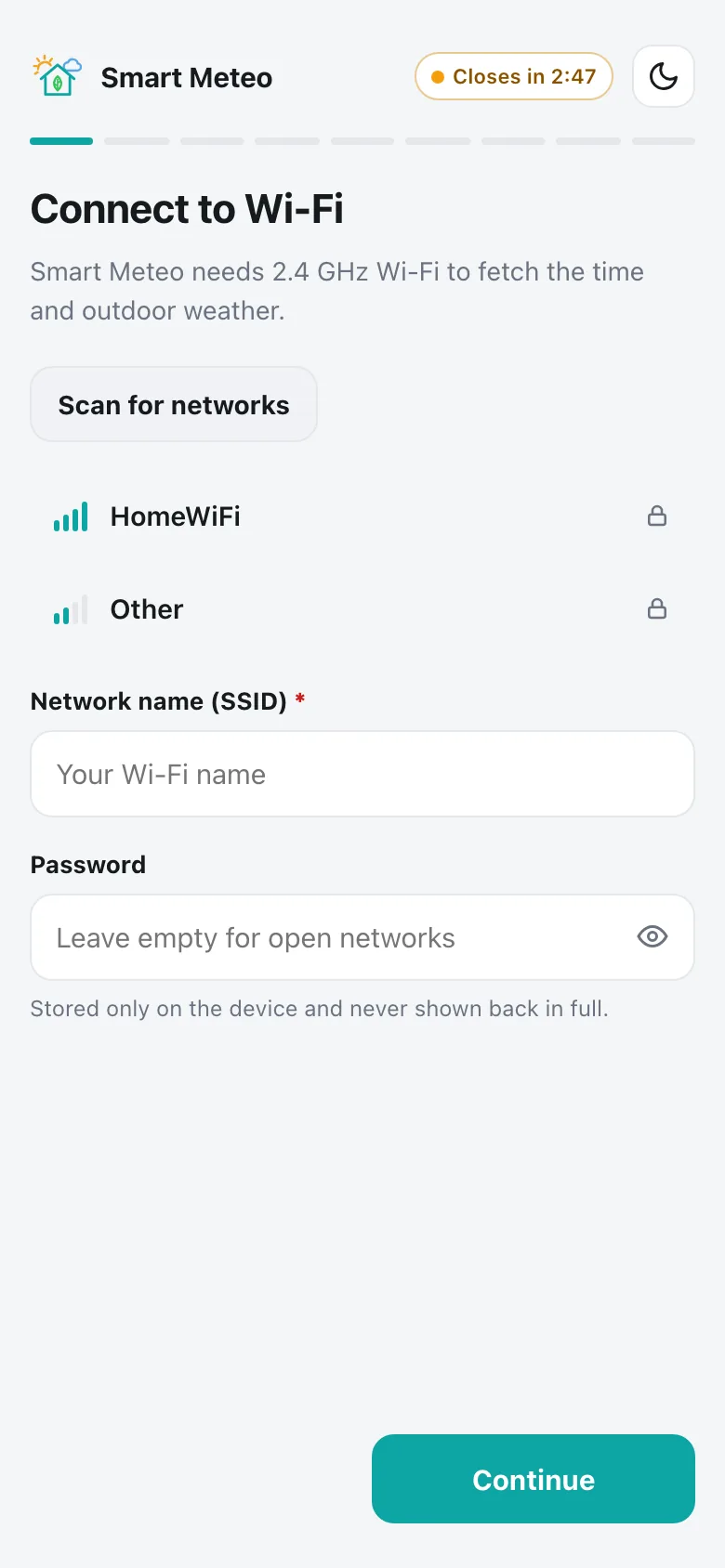
The setup wizard, screen by screen
Screenshots of the real page. Use the arrows or tap the dots.
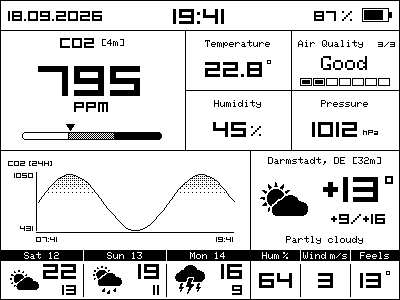
Reading the screen
Indoors on the left and top, outdoors on the right and bottom. Tap a number on the picture or in the list.
Every screen it can show
Some of these you'll see on the first day, and some hopefully never. All of them are real frames from the device.
The bottom strip: you choose
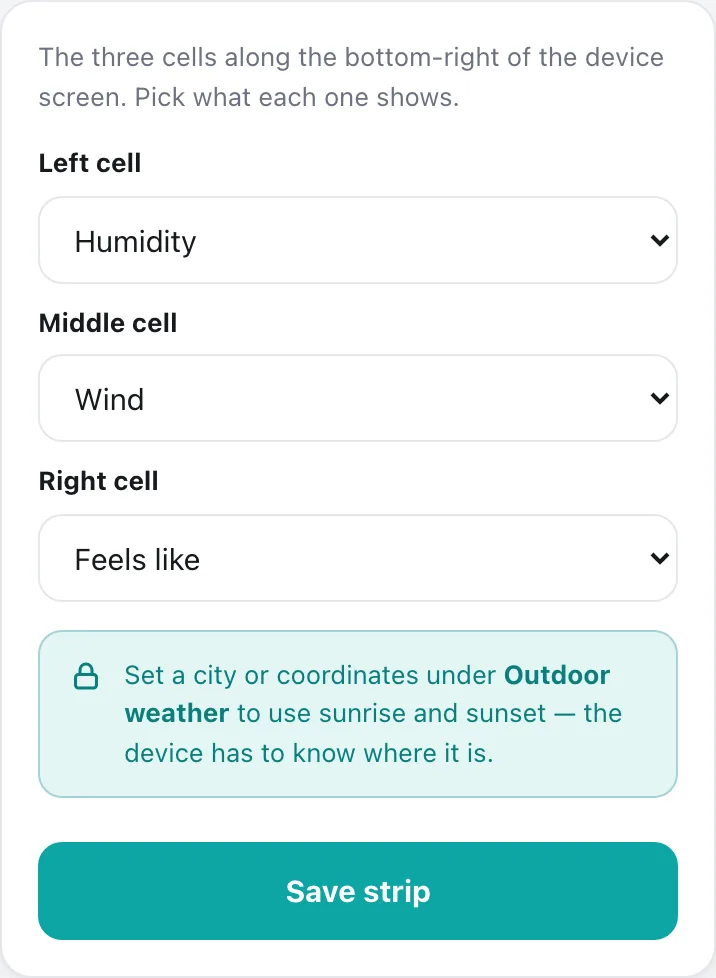
The three cells at the bottom right are yours to fill. Out of the box they show outdoor humidity, wind and feels‑like; you can swap any of them for something else.
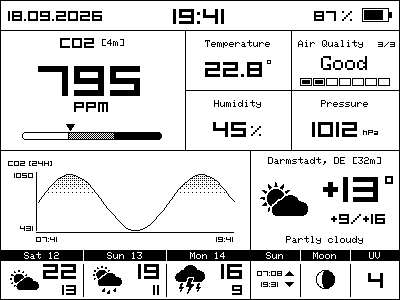
What each cell can show
| Option | What it shows | Needs |
|---|---|---|
| Sunrise & sunset | Both times in one cell, ▲ rise and ▼ set. | Your city or coordinates. Works offline: computed on the device. |
| Moon phase | A small picture of tonight's moon. | Nothing: only the date. Works in every mode. |
| Humidity | Outdoor humidity, %. | Weather |
| Wind | Wind speed, m/s. | Weather |
| Feels like | Outdoor feels‑like temperature. | Weather |
| UV index | The UV index for a clear sky: the most it can be today. Under cloud it is lower. | Weather |
| Rain chance | Chance of rain, %. | Weather |
| Cloud cover | Cloud cover, %. | Weather |
| Dew point | Outdoor dew point. | Weather |
| Today's high / Today's low | The day's range, one per cell. | Weather |
- Open Settings → Bottom strip.
- Pick the left, middle and right cell. Each option fits in one cell only. Options the device can't fill right now are greyed out, and a note underneath says why.
- Press Save strip. The screen follows on its next full update, within a few minutes. No restart needed.
The button
The only control on the device, on its right edge. How long you hold it decides what happens. The light on the front tells you when you've held it long enough.
| You do | In normal use | Brand‑new or reset | While settings are open | While it's off |
|---|---|---|---|---|
| Press | Measures now and redraws the whole screen. Try it right after opening a window. | Opens the setup Wi‑Fi and shows the QR code | Closes the settings page | Switches it on: full screen, a fresh reading, goes online |
| Hold 3 s light blinks 3× | Opens the settings page on your home Wi‑Fi, or on its own hotspot if there is none | Same as a press | Closes the settings page | Switches it on |
| Hold 10 s one long dim | Asks on the screen whether to switch off; press again to confirm. Waiting 30 s means no. | — | — | — |
Opening the settings page later
To save battery, the device has no web page running most of the time. You wake one up with the button.
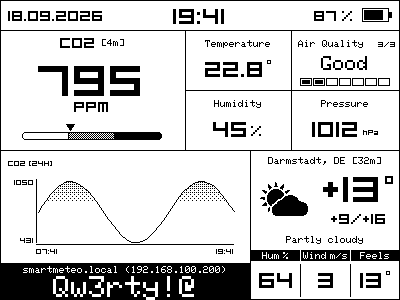
- Hold the button for 3 seconds. The light blinks three times.
- On your home Wi‑Fi: a black band appears at the bottom of the screen with the address (smartmeteo.local and the IP) and the password in large letters. Open the address on any phone or computer on the same Wi‑Fi.
- No home Wi‑Fi (or it can't connect): the device raises its own Smart Meteo Wi‑Fi and shows the QR screen, exactly as in first setup.
- Sign in with the password on the screen. Your browser can remember it for 30 days.
How long the page stays open
| Rule | What it means |
|---|---|
| 3 minutes | Closes after three minutes without you doing anything. Just reading doesn't count as activity, but any tap that changes or asks for something does. |
| 15 minutes | Tap the timer badge at the top of the page to keep it open longer. |
| 40 minutes | A hard limit. After 40 minutes the page closes whatever you do. Hold the button again to reopen it. |
| Press the button | Closes the page straight away. |
| During an update | The page never closes while firmware is being written. |
The settings page, tab by tab
Five tabs along the bottom. Pick one, then open any card to see what it does.
Modes, the clock and night
One choice trades freshness of data against battery life. The air‑quality sensor always measures every 5 minutes; its algorithm needs that rhythm and can't be slowed down.
- CO₂ every
- 5 min
- Online every
- 15 min
- Screen clock
- live
- CO₂ every
- 15 min
- Online every
- 30 min
- Screen clock
- live
- CO₂ every
- 30 min
- Online
- alerts only
- Screen clock
- last update
- CO₂ day / night
- you pick
- Online every
- you pick
- Estimate
- live, on the page
* Estimated for the 2,000 mAh cell with night mode on. The settings page shows its own estimate, which updates as you change anything.
The screen clock: the biggest single choice
With the live clock on, the device wakes every minute to tick it: 1,056 times a day. Off, the screen shows the time of the last reading instead, and the device wakes 288 times a day. It lasts about half again as long, and everything it measures stays the same.
Night mode (quiet hours)
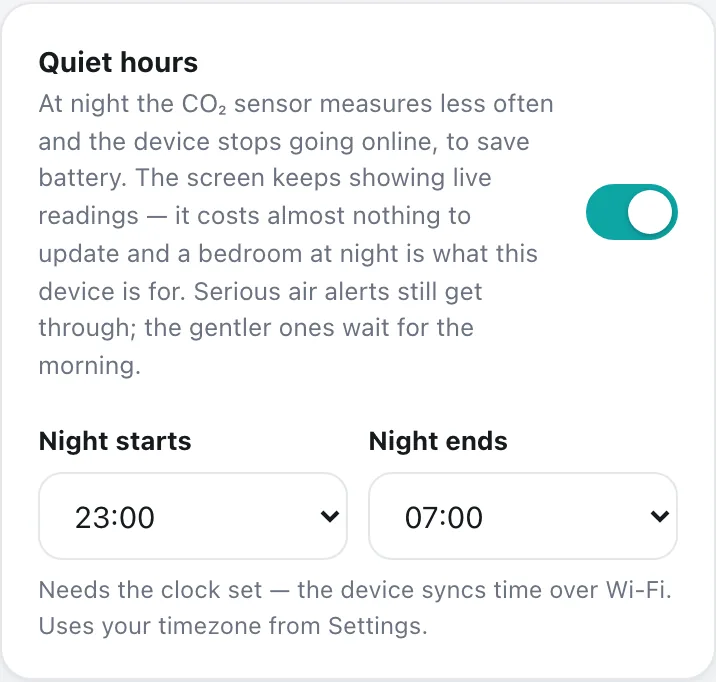
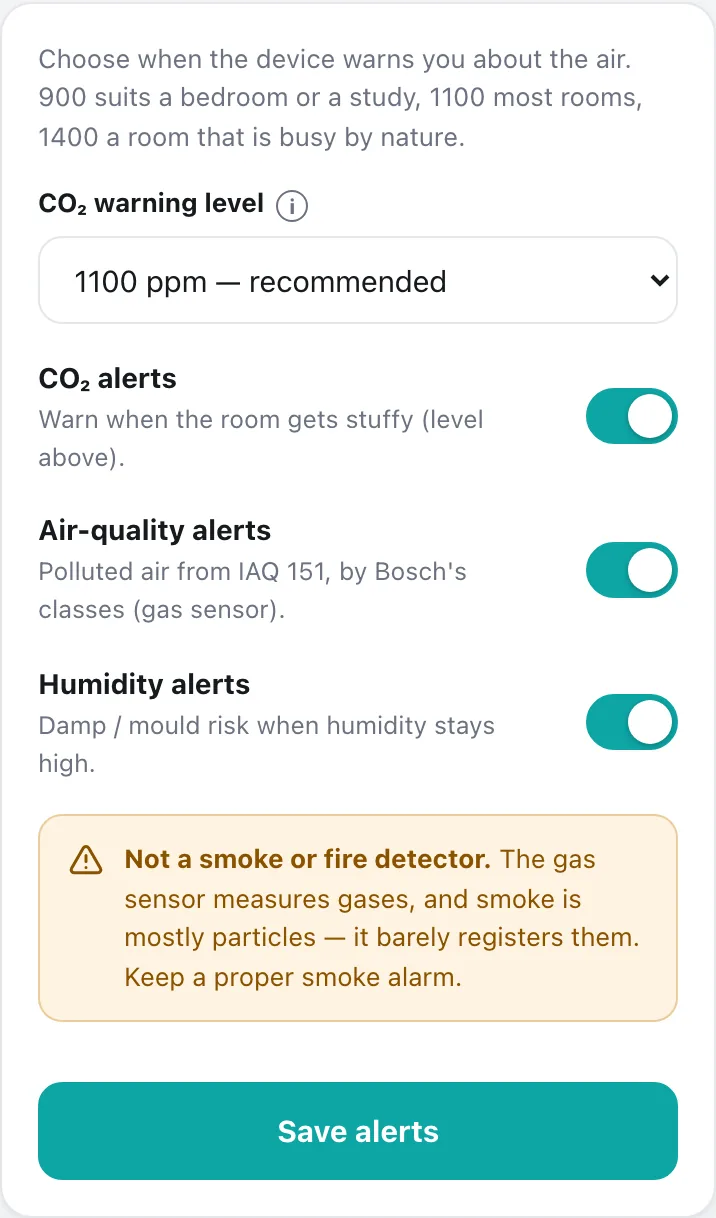
Default 23:00 – 07:00. At night CO₂ is measured half as often, the device stops going online, a moon replaces the clock, and the frame freezes until morning. Serious alerts still get through at night; gentler ones wait for the morning. Night mode needs the clock set.
A press of the button at night gives you a full, fresh screen.
Air quality and alerts
Two sensors, one verdict. CO₂ is a true measurement: the same number means the same air anywhere. The air‑quality index comes from a gas sensor that keeps itself calibrated against the last few days. So IAQ 50 is typical good air for your home, and IAQ 200 typical polluted air.
| On the screen | Bosch class | Index | Alert | What to do (Bosch) |
|---|---|---|---|---|
| Pure | Excellent | 0–50 | none | No measures needed |
| Good | Good | 51–100 | none | No measures needed |
| Light | Lightly polluted | 101–150 | none | Ventilation suggested |
| Moderate | Moderately polluted | 151–200 | advisory | Increase ventilation with clean air |
| Heavy | Heavily polluted | 201–250 | warning | Optimize ventilation |
| Severe | Severely polluted | 251–350 | warning | Maximize ventilation, reduce time in the room and find the source |
| Extreme | Extremely polluted | 351–500 | warning | Maximize ventilation, avoid the room and find the source |
| Stuffy | CO₂ above your level (1,100 ppm by default) | advisory from 1,500 | Breathing and too little fresh air: open a window for a few minutes | |
| Damp | Humidity above 70 %, or above 65 % with a dew point over 18 °C, two readings in a row | warning | Condensation and mould risk: airing or a little heat helps. Clears below 62 %. | |
How alerts behave
- Warnings go out at once, even at 3 a.m.: heavy pollution or worse, damp air, CO₂ from 1,500 ppm, a nearly empty battery.
- Advisories wait for the next scheduled connection, and at night for the morning.
- On the screen, the air block turns black for Stuffy, Damp and heavy pollution, so you can see it from across the room.
- A reading must hold for two measurements before it counts. It won't flicker on a border.
- When it's over, a Back to normal message names what ended.
- Alerts go to Telegram and to your smart home hub (MQTT). Each kind can be switched off in Settings → Notifications, and the CO₂ level can be set from 700 to 1,600 ppm.
- Battery messages arrive below 15 %, 10 % and 5 %.
Calibration
Neither is needed on day one. The CO₂ sensor is calibrated at the factory, and the gas sensor calibrates itself. These are for when you want to be sure.
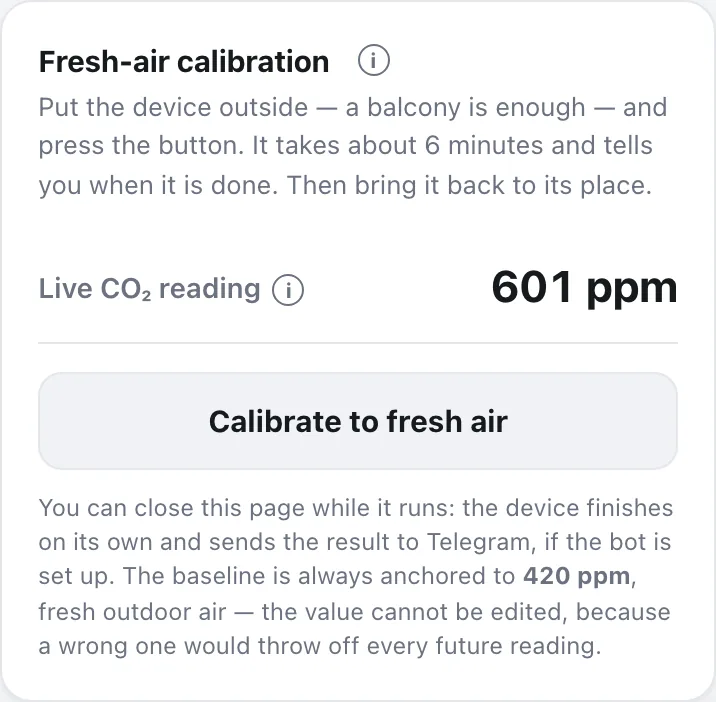
CO₂: fresh‑air calibration, one press
- Take the device outside. A balcony or an open window is enough. Keep it away from your breath and from exhausts.
- Open Settings → CO₂ calibration and press Calibrate to fresh air.
- Wait about 6 minutes. The device takes six readings, one a minute. You can close the page; it carries on and tells you on Telegram when it's done.
- Bring it back in. Done: the sensor now reads outdoor air as 420 ppm.
| What the device sees in those six readings | What happens |
|---|---|
| Steady (within 30 ppm) and low (average ≤ 600 ppm) | It's clearly outdoor air. Calibrated straight away, no questions asked. |
| Unsteady or high | The page shows the numbers it read and asks whether you're sure. Answer within 2 minutes; if you don't, nothing is written. |
| You press Stop | Stops at any point during the six minutes, and nothing is written to the sensor. |
Temperature: match a thermometer you trust
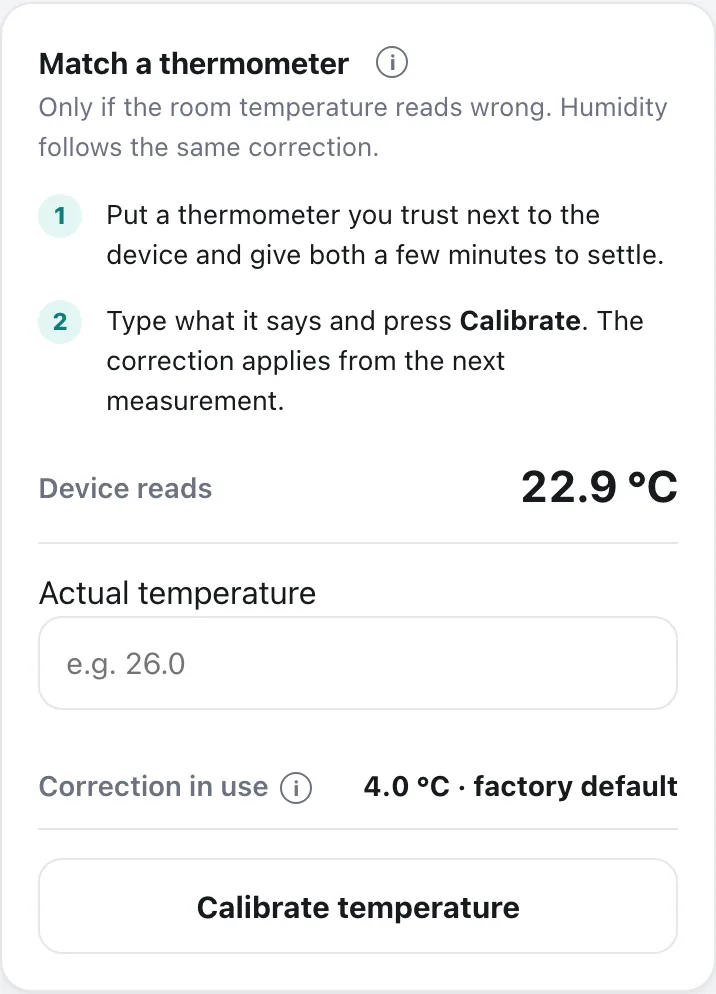
Only if the room temperature reads wrong. Put a thermometer you trust next to the device and give both a few minutes to settle. Then type what the thermometer says into Settings → Temperature calibration and press Calibrate.
Humidity follows the same correction automatically. The correction applies from the next reading, and like the CO₂ calibration it lives in the sensor and survives a factory reset.
Smart home and Telegram
Pick the mode in Network. Only one mode is active at a time, and switching takes one restart.
| Wi‑Fi | Wi‑Fi + MQTT | Matter · Thread | |
|---|---|---|---|
| Good for | Using it on its own | Home Assistant, Node‑RED | Google Home and other Matter hubs |
| Outdoor weather | From the internet | From your hub | Off |
| Telegram | Yes | Yes | Off |
| Needs | Home Wi‑Fi | Wi‑Fi + an MQTT broker | A Thread border router (e.g. Nest Hub) |
| Updates | Automatic | Automatic | When you open the settings page on Wi‑Fi |
Home Assistant (MQTT)
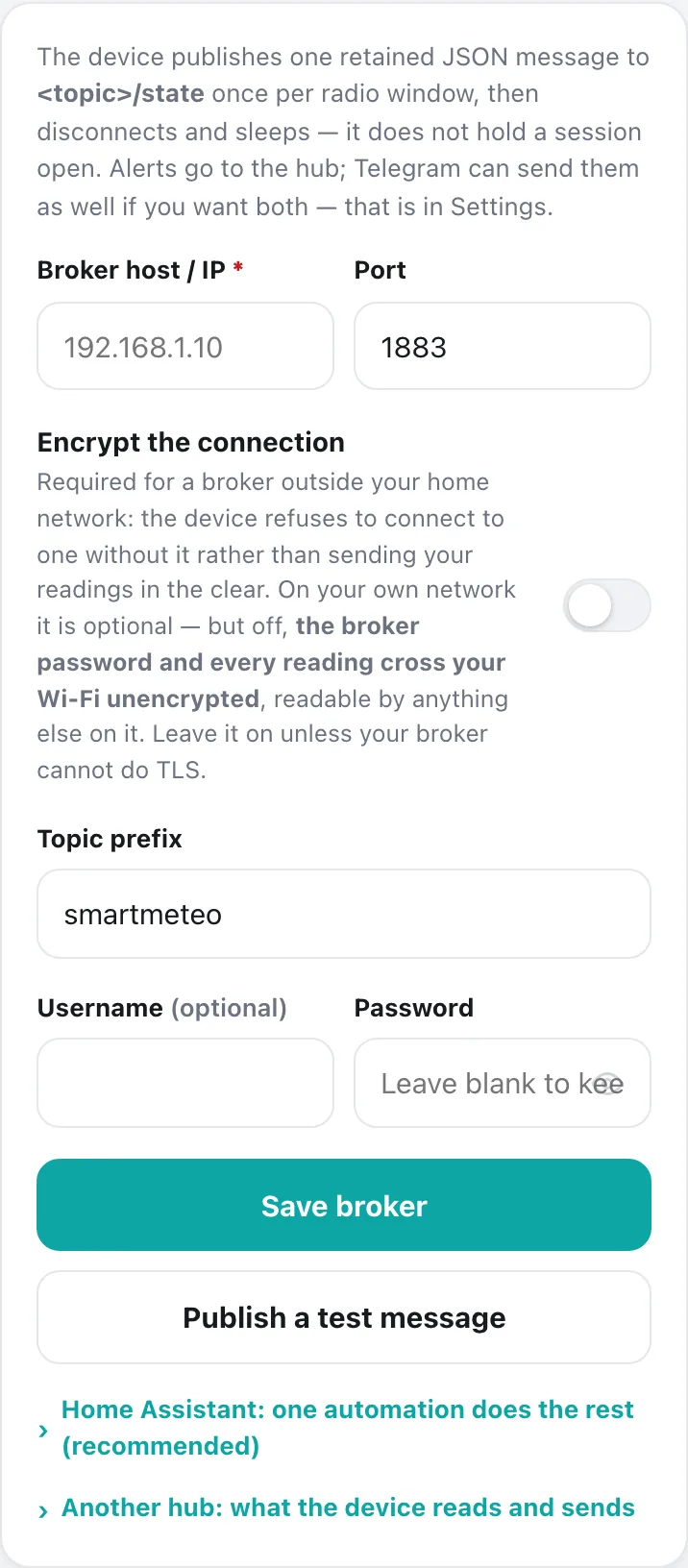
- In Network, choose Home Assistant, enter your broker's address (and username and password if it has them), then Save broker.
- Press Publish a test message. The device appears in Home Assistant by itself, with every sensor.
- Open Home Assistant: one automation does the rest, and copy the text.
- In Home Assistant go to Settings → Automations → Create → Edit in YAML, paste and save. The weather now comes from your hub, and alerts reach every phone in the house.
Matter over Thread (Google Home and others)
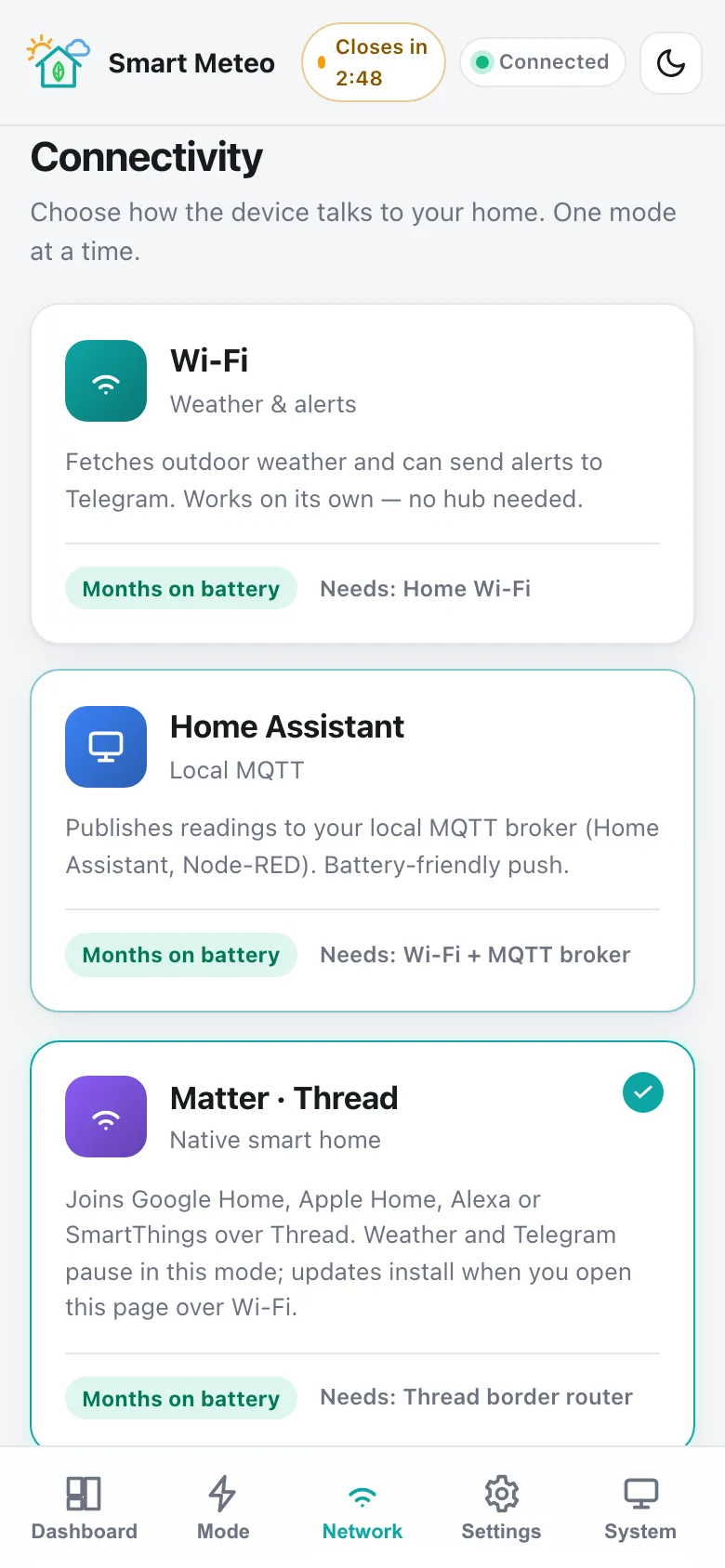
- First save your home Wi‑Fi in the settings page. Matter doesn't use it, but you'll need it to open the settings page later.
- In Network → Matter · Thread press Switch to Matter. The device restarts and shows a pairing QR code on its screen.
- In your smart home app choose Add device → Matter and scan the code on the screen, or type the numbers under it.
- The app warns about an uncertified device. Smart Meteo hasn't been certified by the Connectivity Standards Alliance yet, so choose Set up anyway.
- When pairing is done, the screen switches to your readings. The hub can also set the clock.
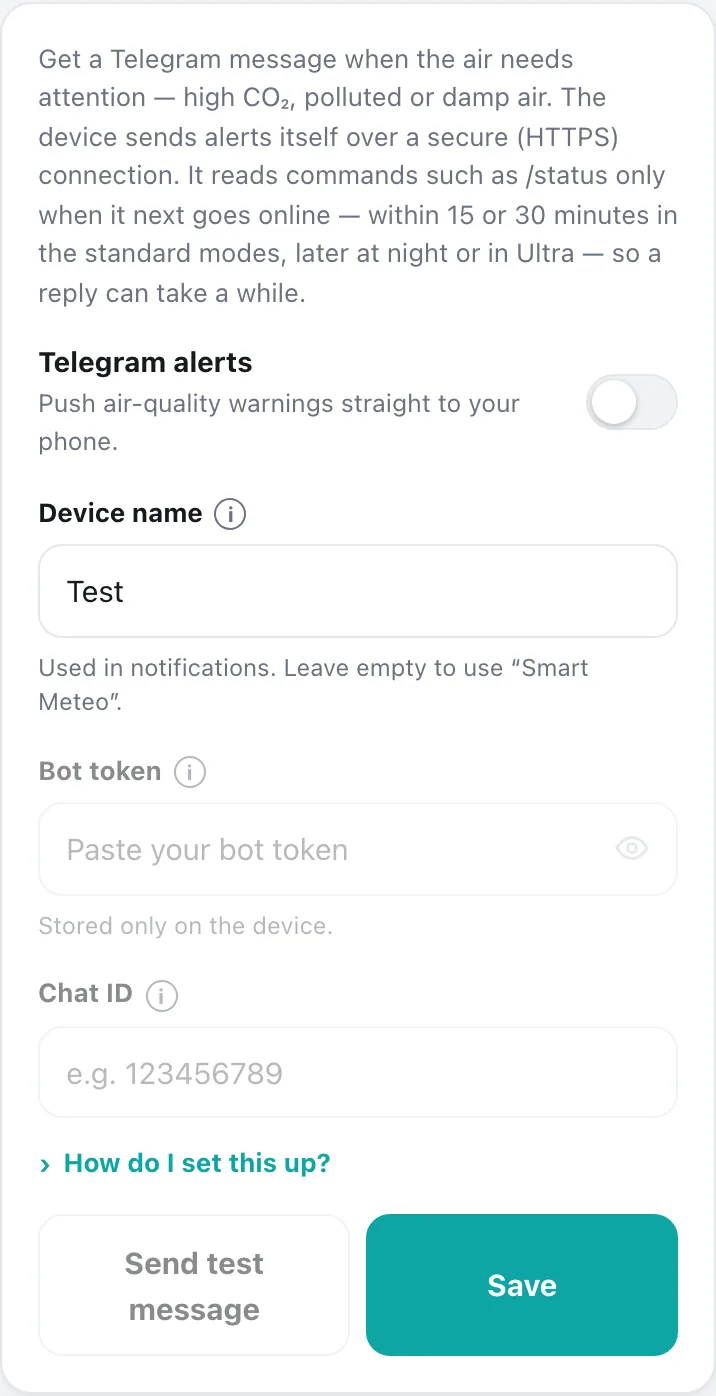
Telegram alerts and commands
- In Telegram, open @BotFather, send /newbot and follow the questions. It gives you a bot token.
- Send any message to your new bot, then find your chat ID. The settings page explains how under How do I set this up?
- Paste both into Settings → Telegram, switch on Telegram alerts, Save, then Send test message.
Weather and time
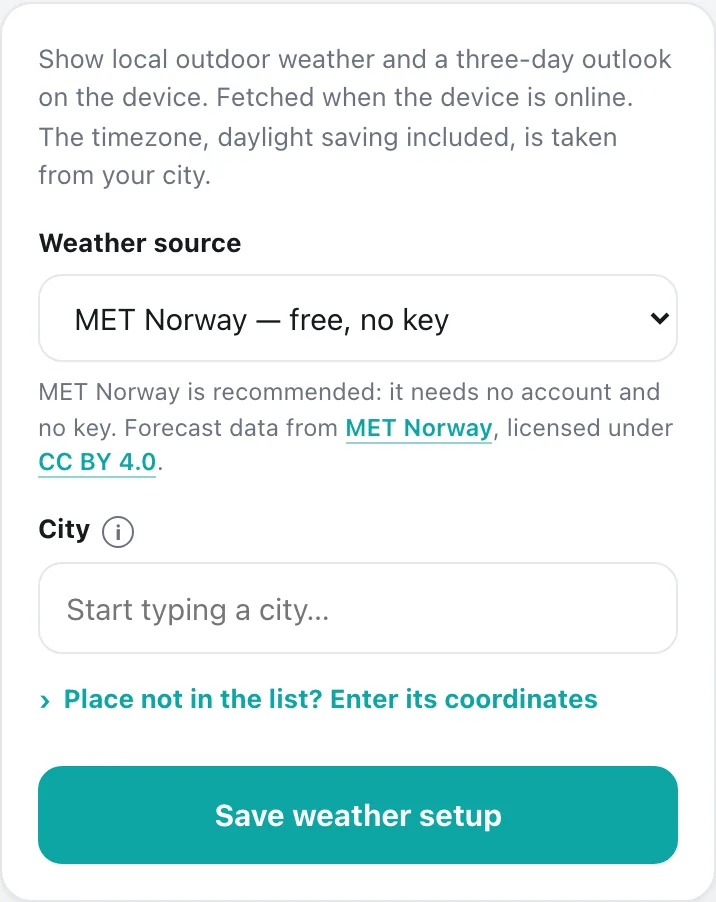
Weather comes from MET Norway, free, with no key and no sign‑up. Start typing your city in Settings → Outdoor weather and pick it from the list. If it isn't listed, choose Enter its coordinates.
If you prefer OpenWeatherMap, add your own key. Whichever source you pick, the other steps in automatically if it doesn't answer.
The same forecast also fills the bottom strip if you choose UV, rain chance, cloud cover, dew point or today's high and low. With Home Assistant, your hub sends them instead.
Time comes from the internet. Your time zone and summer time are taken from your city, or from your phone, and the clocks go forward and back by themselves. Without internet (Ultra Save, Matter), use Sync clock from this browser, or Set the time manually.
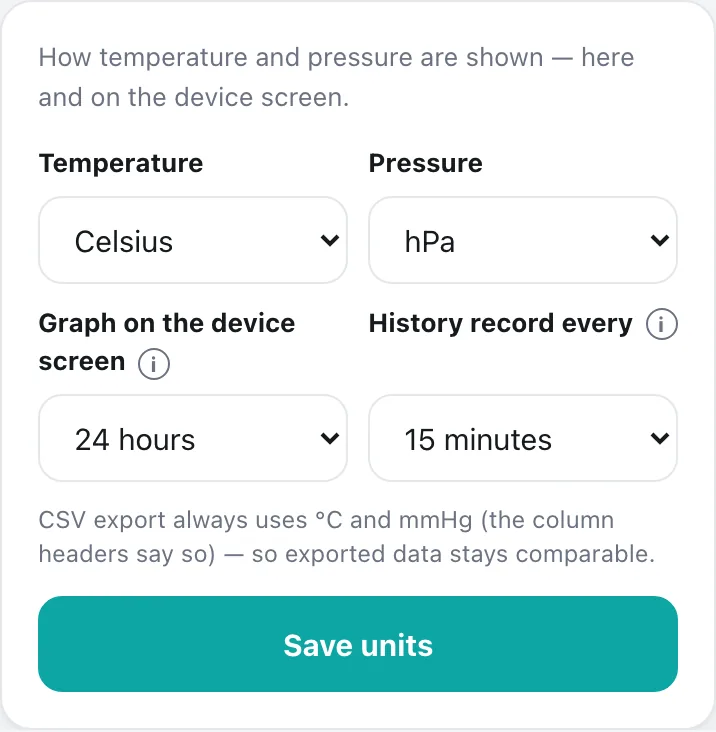
Settings → Units: °C or °F, hPa or mmHg, how many hours the graph on the screen covers, and how often history is recorded: every 5, 10 or 15 minutes. At 15 minutes the device keeps about a year and a half.
Updates
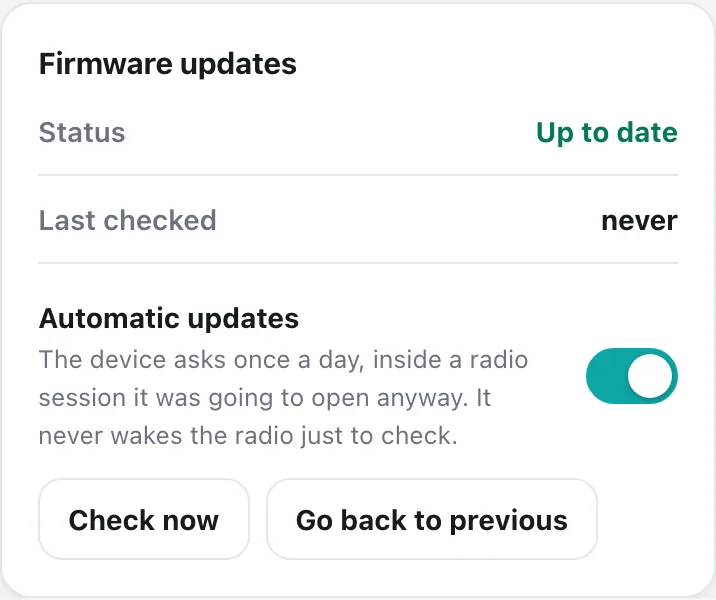
- Automatic: once a day, the device checks for new firmware during a connection it was making anyway. It never wakes the radio just to check.
- Signed: it only installs firmware signed by us. Anything else is refused.
- Safe: the new version must pass a self‑test the first time it goes to sleep. If it doesn't, the device goes back to the previous version by itself and never tries that one again.
- On battery an update needs at least 40 % charge.
- System → Firmware updates: Check now, Install now, or Go back to previous. Going back marks the current version as unwanted on this device, so it won't be offered again.
- In Matter mode, updates install when you open the settings page on your home Wi‑Fi.
Battery, charging and switching off
Charging: any USB‑C charger. Charging runs by itself, even when the device is off. On the cable, the percentage rises only as fast as a real cell can charge, so it won't jump when you unplug.
Low battery: when the charge gets low, the percentage on the screen gets a box around it, and Telegram reminds you at 15, 10 and 5 %.
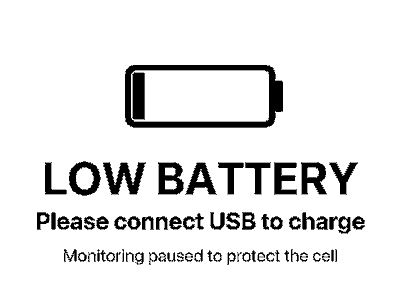
Empty: at the cut‑off voltage (3.30 V by default, adjustable in Settings → Battery) the device stops measuring to protect the cell. It shows LOW BATTERY once and sleeps. Plug in the cable and it carries on where it left off.
If you've fitted a different cell, set its capacity there too, so the months estimate stays honest.
Switching off
Two ways: hold the button for 10 seconds, then press again to confirm the question on the screen. Or use System → Turn off.
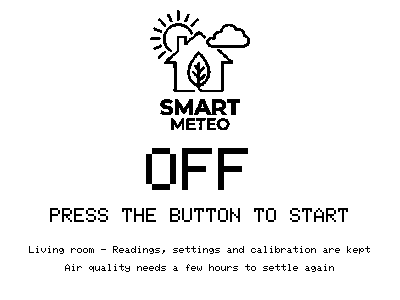
The screen says OFF in words. On e‑paper, a device that is off, one with a flat battery and one that has frozen all look the same, so this one tells you which it is.
Nothing is erased. Readings, settings and both calibrations stay. Press the button to start: it takes a fresh reading and draws a full screen straight away. After a long break the air‑quality sensor needs a few hours before its verdict means anything.
Restart, turn off or factory reset?
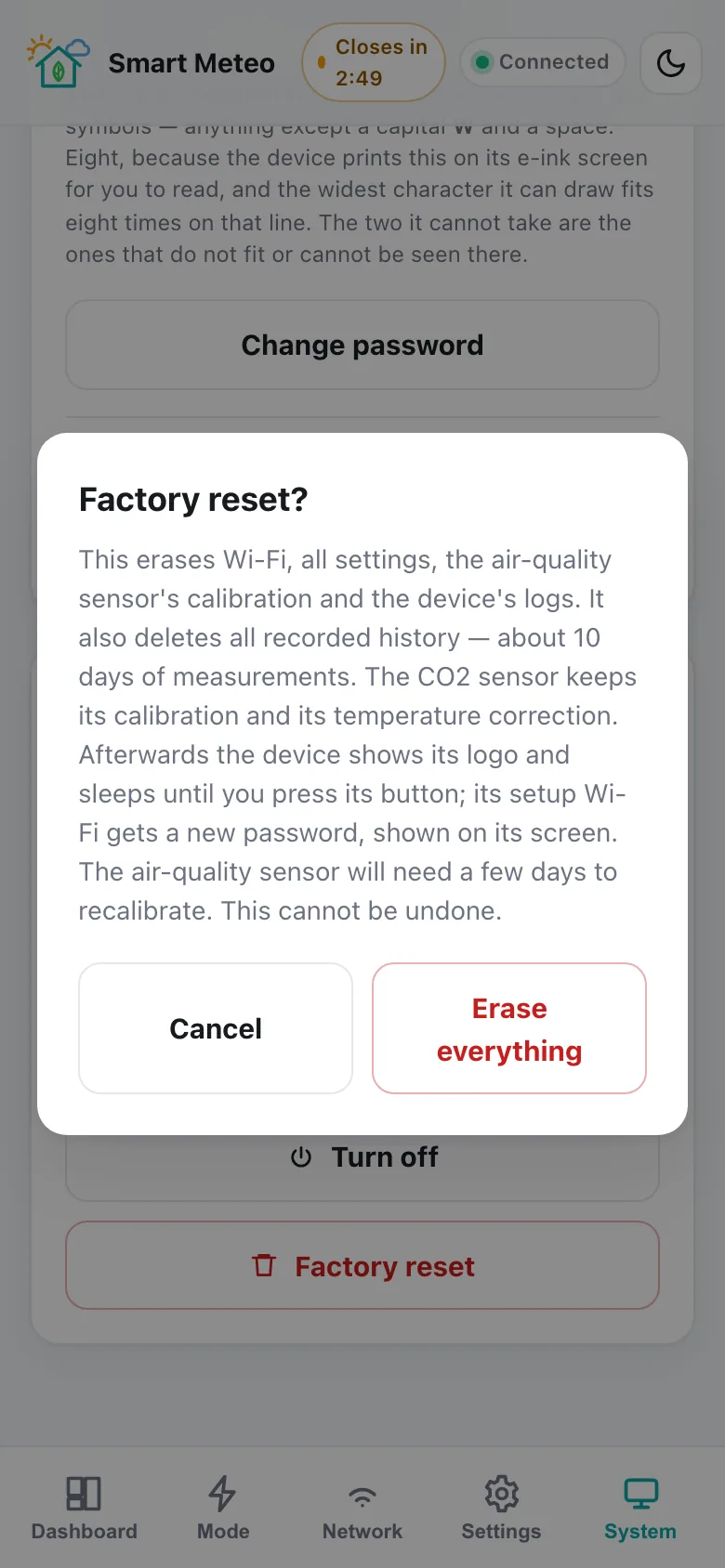
Three buttons in System → Maintenance, with very different consequences. Pick one to see exactly what happens to your data.
What happens, in order
Password and security
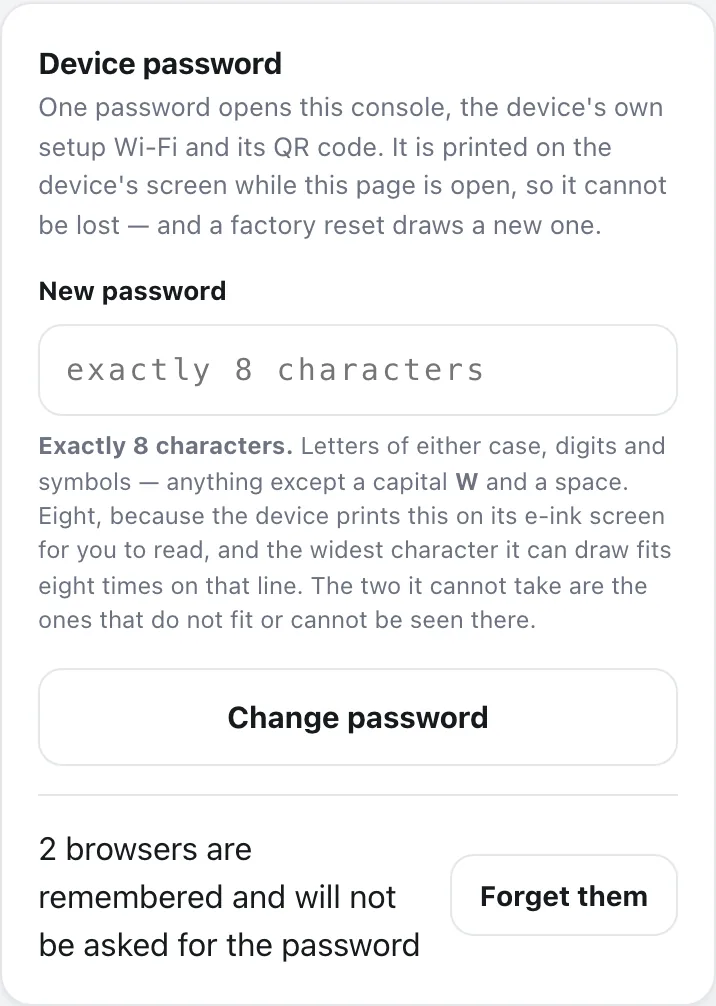
One password opens the settings page, the device's own setup Wi‑Fi and its QR code. Every device has its own, created at first start. It's printed on the screen whenever the page is open, so you can't lose it.
- Rules: exactly 8 characters. Letters of either case, digits and symbols; anything except a capital W and a space. Those are the two the screen can't show legibly. The page warns you about look‑alikes such as l 1 I and O 0.
- Five wrong tries lock the page for a minute.
- Remember this browser: skips the password for 30 days, on up to four browsers. Forget them if you've lost or sold a phone. Changing the password also forgets them all.
- The password never crosses the network: the page sends only a one‑time proof, so a neighbour on the same Wi‑Fi can't pick it up.
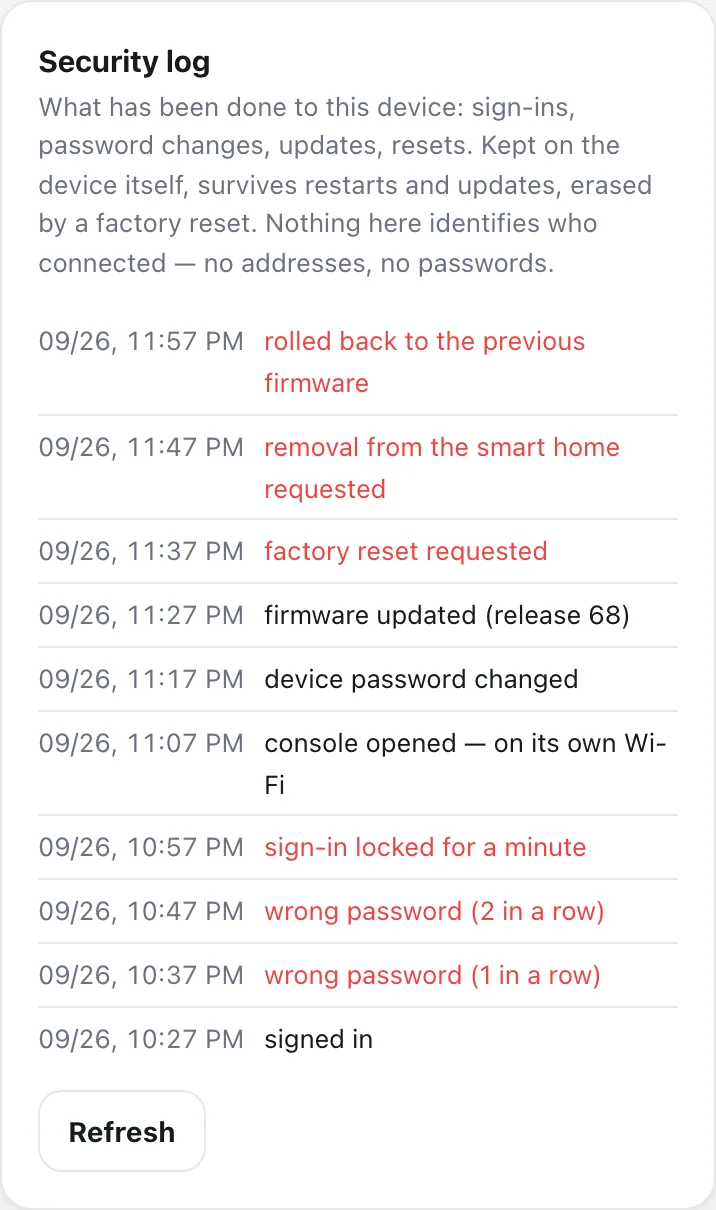
- Security log (System tab) lists sign‑ins, wrong attempts, password changes, updates and resets. It doesn't record who connected, only what was done.
- With Telegram set up, you get a message when the password changes, an update installs or a factory reset is requested.
Something's wrong
The usual questions, and what to do about them.
The screen shows dashes and an empty graph
That's the first minutes: no clock, no weather, no history yet. Everything fills in after the device has been online once. Press the button to take a reading now.
If CO₂ shows dashes and the air block says Error, the CO₂ sensor isn't answering. Restart from System; if it stays, contact us.
"!wifi" appears next to the clock
The last connection failed. Readings carry on as normal; only the weather and messages wait. The device retries by itself, less often each time so a Wi‑Fi outage doesn't drain the battery.
Check that your router is on and uses 2.4 GHz. If you changed your Wi‑Fi password, hold the button for 3 s. With no network the device raises its own hotspot, and you can enter the new password.
I can't find the "Smart Meteo" Wi‑Fi
It only exists while the setup screen with the QR code is showing, and it switches off after 3 minutes of inactivity. On a new or reset device press the button; on a configured one hold it for 3 seconds while your home Wi‑Fi is out of reach.
I forgot the password
You don't need to remember it. Hold the button for 3 seconds, and the password appears on the device's screen: in the black band at the bottom on your home Wi‑Fi, or on the QR screen. Capital letters count.
The page says the password is wrong, or asks me to wait
After five wrong tries the page is locked for a minute; that's protection, not a fault. Check look‑alikes: l (small L) versus 1 and I, O versus 0. Your phone may have capitalised the first letter.
The setup page didn't open by itself
On the device's own Wi‑Fi, open 192.168.4.1 in your browser. On your home Wi‑Fi, open smartmeteo.local or the IP address shown in the band at the bottom of the screen. Some Android phones need the IP.
My phone says "No internet" on the Smart Meteo network
That's correct: the device's own Wi‑Fi isn't connected to the internet. Tell the phone to stay connected, or it may switch back to mobile data and the page will stop loading.
Air quality has said "Warm‑up" for days
Normal for the first few days, and again after a factory reset. The gas sensor needs a few days of ordinary life to learn your home's baseline; 0/3 … 3/3 in the corner of the block shows how far it has got. After being switched off for a long time it needs a few hours. CO₂ and damp warnings already work meanwhile.
The air quality turned bad but CO₂ is normal
Then it's probably not people. The gas sensor reacts to cooking, cleaning products, paint, new furniture and perfume; CO₂ only rises from breathing. The alert message says so too.
CO₂ reads higher or lower than I expect
Outdoor air is about 420 ppm. If the device reads very differently outdoors, run the fresh‑air calibration. Don't breathe on it while it measures; one exhale near the vent lifts the reading.
The temperature seems a little high
Place it away from sun, radiators and electronics, then match it to a thermometer you trust. Humidity follows the same correction.
The screen hasn't changed for hours
Four normal reasons:
• Night: a moon instead of the clock, and the frame is frozen until morning.
• OFF on the screen: press the button.
• LOW BATTERY: plug in the cable.
• Too cold or too hot: outside 2–50 °C the device doesn't redraw, which protects the ink. It resumes when the room is back in range.
The cells at the bottom right show dashes
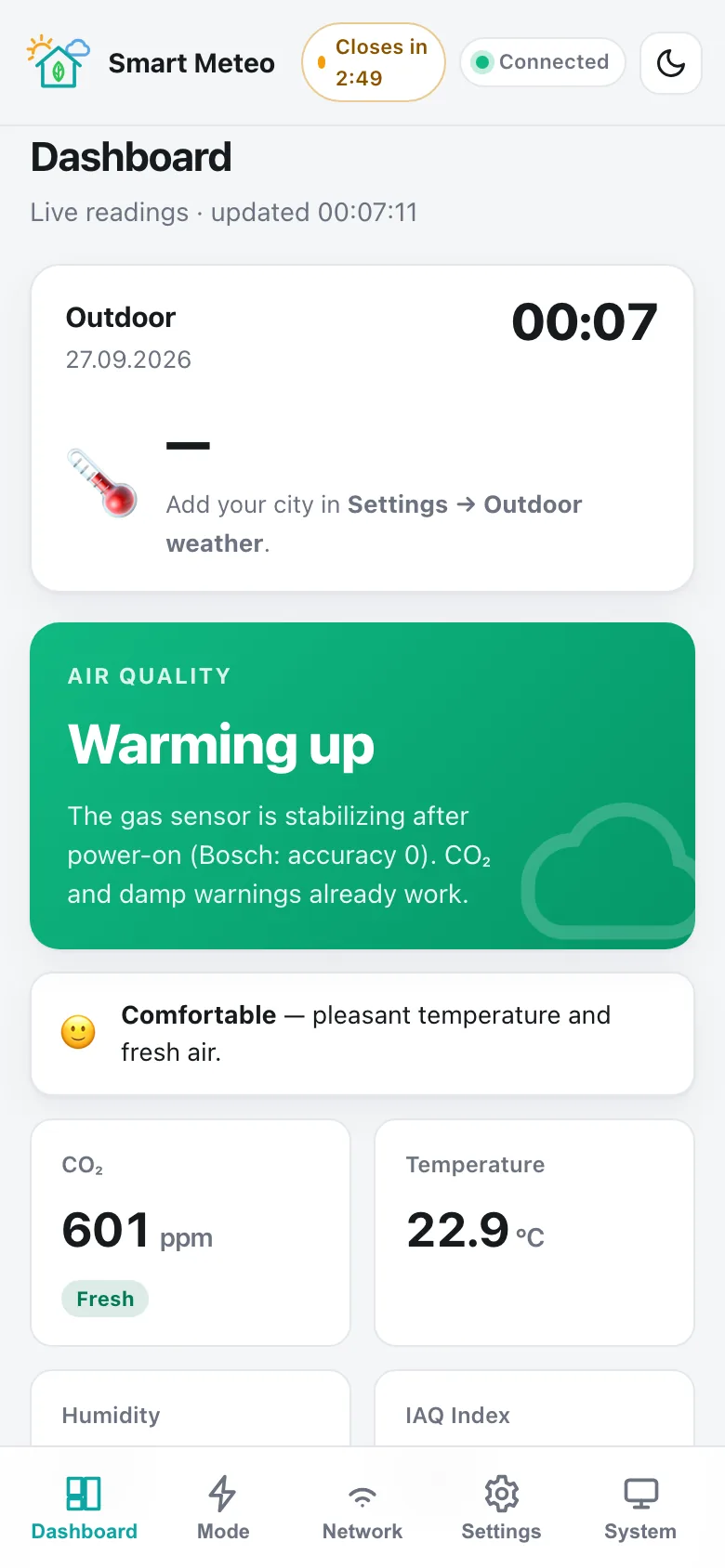
Those cells need the weather, and the device isn't getting any: no city set, Matter mode, Ultra Save on plain Wi‑Fi, or no Wi‑Fi at all. Either add your city, or pick Sunrise & sunset and Moon phase in Settings → Bottom strip: they work without internet.
The weather says "No weather yet"
Add your city in Settings → Outdoor weather; no key is needed. Weather arrives at the next connection. In Matter mode there's no weather; in Home Assistant mode it comes from your hub's automation.
My smart home app says "uncertified device"
Expected: Smart Meteo isn't certified by the Connectivity Standards Alliance yet. Choose Set up anyway. If pairing fails once, simply try again; the device shows its QR code until it's in a home.
The Telegram bot doesn't reply
The device reads commands only when it goes online: every 15–30 minutes normally, later at night and in Ultra Save. If the test message never arrives, check the token and chat ID.
An update was installed and then it was back on the old version
The new version failed its self‑test on this device, so the device rolled back by itself and won't try that version again. Nothing to do: the next release is offered as usual.
Nothing happens when I press the button
Plug in the charger and wait a minute; the battery may be empty. Then press once. If the screen says OFF, one press starts it. Hold for 3 s only when you want the settings page.